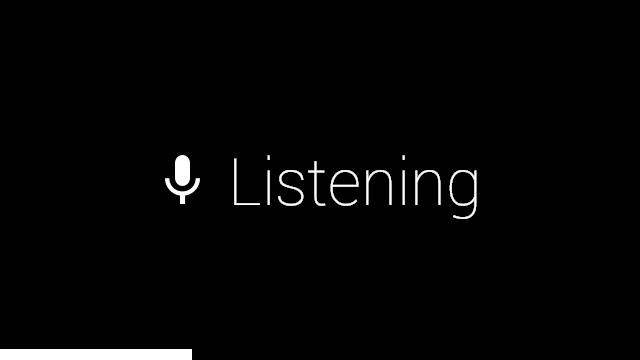
The application will start and automatically start listening to the sound in the background. It will display a view like this:
Once the listening, fingerprinting, and recognition is done you will be pushed into the history list and you will see the new result that was added to it. It will look something like this:
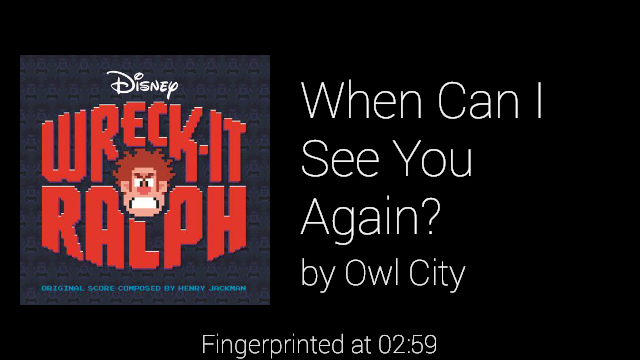
Above is an example of a song result. It shows you the song name, artist's name, Album art, and the timestamp of when the section of the song that you where listening to for the recognition. If you want to get to the list of results without having to listen to a song to get there just swipe forward. While in the list of result you can tap on an item and get the list of menu items. At the moment the only available item is Album which will bring you to this view:
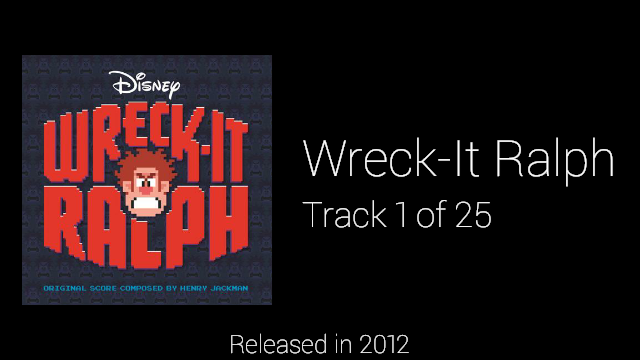
Above is an example of the album view. It shows you the album name, the number the track is on the album, the number of tracks on the album, the album art, and the year the album was released. To go back to your list of songs just swipe down.
This application only uses the internet to send a fingerprint (created from the sound sample collected from the microphone) to the recognition web service. No personal information is accessed or used with this application. Also a note, the application does use Google Analytics to track usage, and any errors that happen while the application is running.
This application uses the Glass Development Kit, or GDK, which means it requires you to sideload it onto your Glass. Below are a couple videos that will walk you through the process of setting up the environment, and then how to sideload an application using the *.APK file.
This tutorial will show you how to install Google Glass drivers on Windows. If you are running MAC OS or Linux, you do not have to worry about this. For those running Windows 8, there is an additional step which is to Disable Driver Signature Verification.
NOTE: Enable Debug Mode before connecting to ADB. Swipe to Settings, Click on Device Info, and Turn on Debug Mode. This will allow communication between your ADB and Glass.
This tutorial will show you how to Sideload (Install) and Uninstall any application to your Google Glass that are not listed under the MyGlass web page. For demonstration purpose Andrew will walk you through installing GlassCopter,a popular remake of a web based helicopter survival game.